
Jump to: Download • Buy • What’s new • Screenshots • FAQ
The text editor for all of us
Smultron has all the text tools you need.
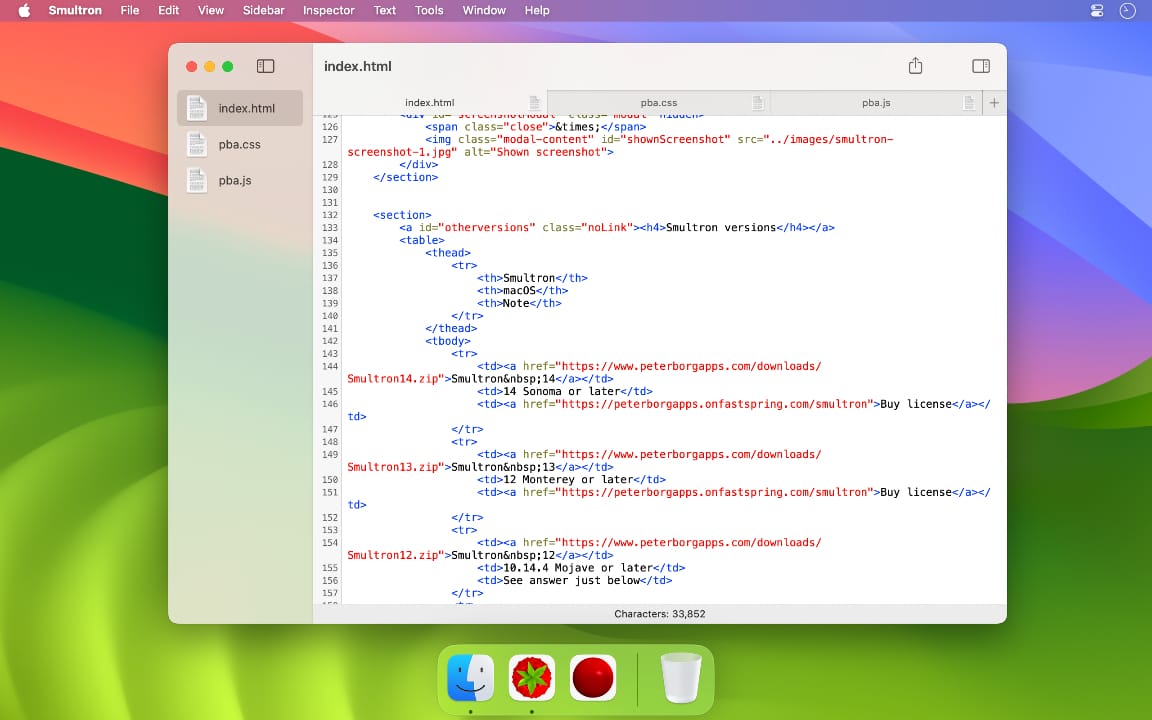
Smultron is a powerful text editor that is easy to use. It is fast, elegant, and comfortable for everyday writing or serious code. Works just as well for small and large projects.
Write anything from a quick note to a full app, in a fast, focused editor that keeps your text at the center.
Smultron is designed for both beginners and experts. It is a joy to use and it has all the text tools one needs. And everyone can use it because it is translated into many languages and has full support for accessibility.
Download
Free to download and try out.
Buy Smultron 14
Need an upgrade or site license? Upgrade or Site.
Prefer a full checkout page? Click here.
✔Secure checkout via FastSpring
✔VAT handled automatically
✔Instant license delivery
✔Pay once for Smultron 14 and use it forever
✔14-day refund guarantee – no questions asked (this applies to our own store, not Mac App Store)
You can also buy it from Mac App Store›
New in Smultron 14
The new Smultron 14 is the best ever Smultron and has the following new features:
- A modernized user interface with a sidebar
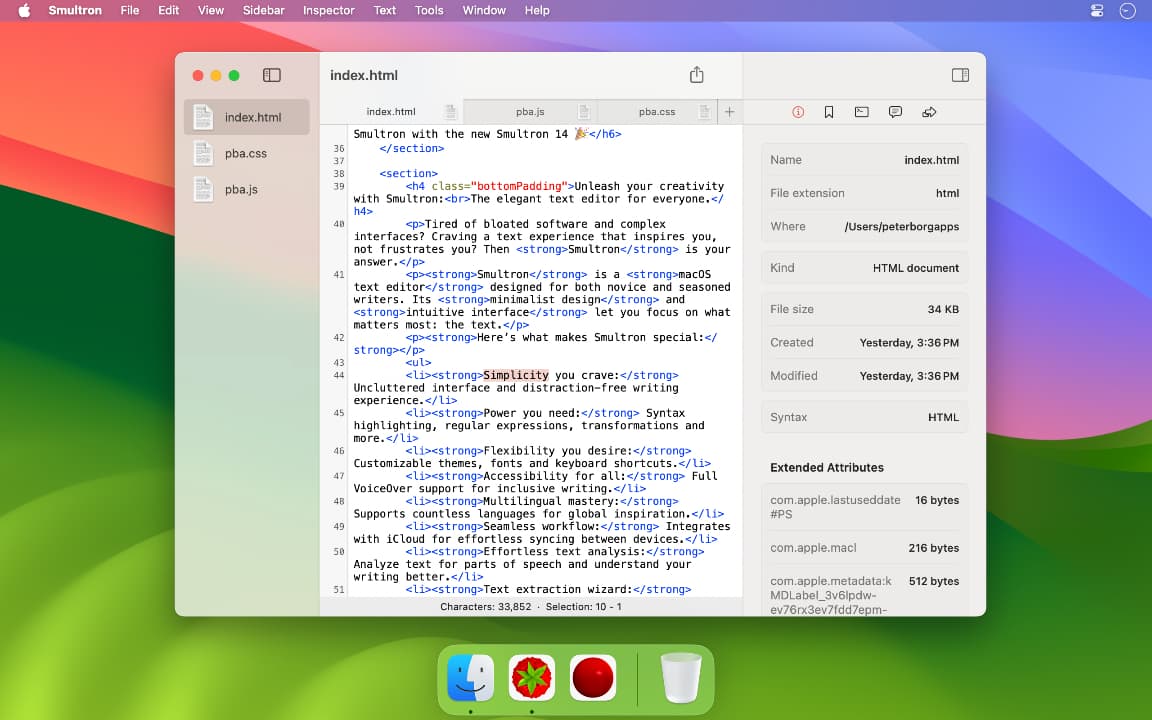
- An easy to use inspector
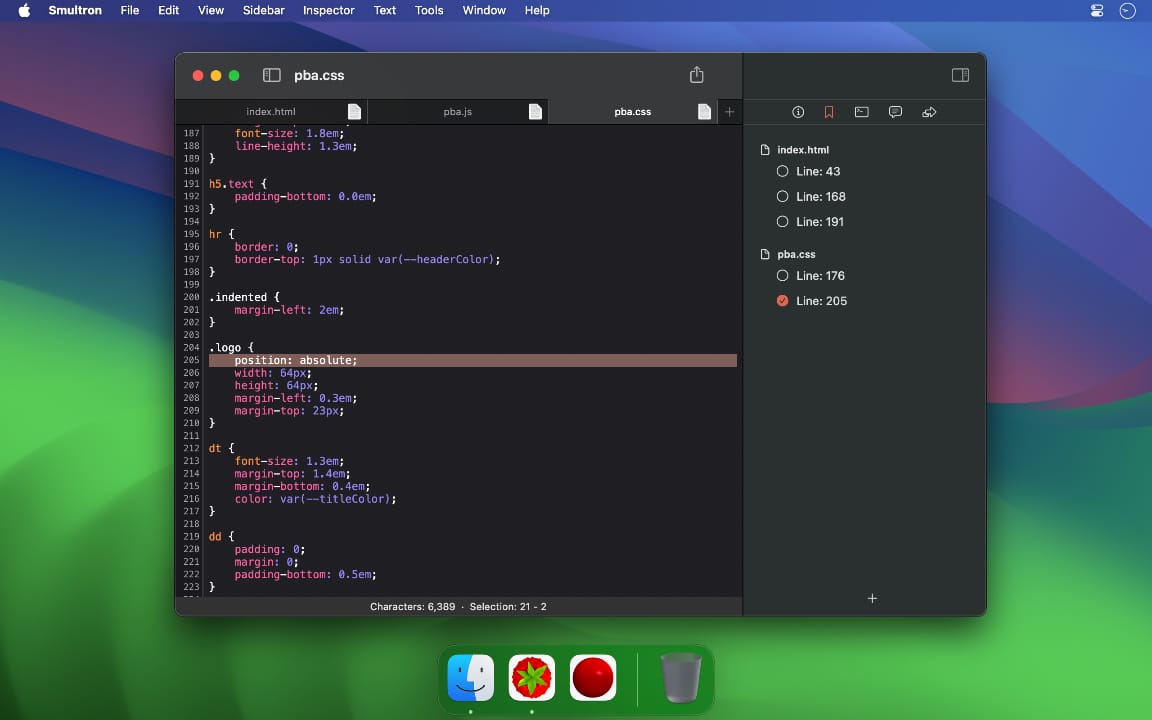
- Bookmarks
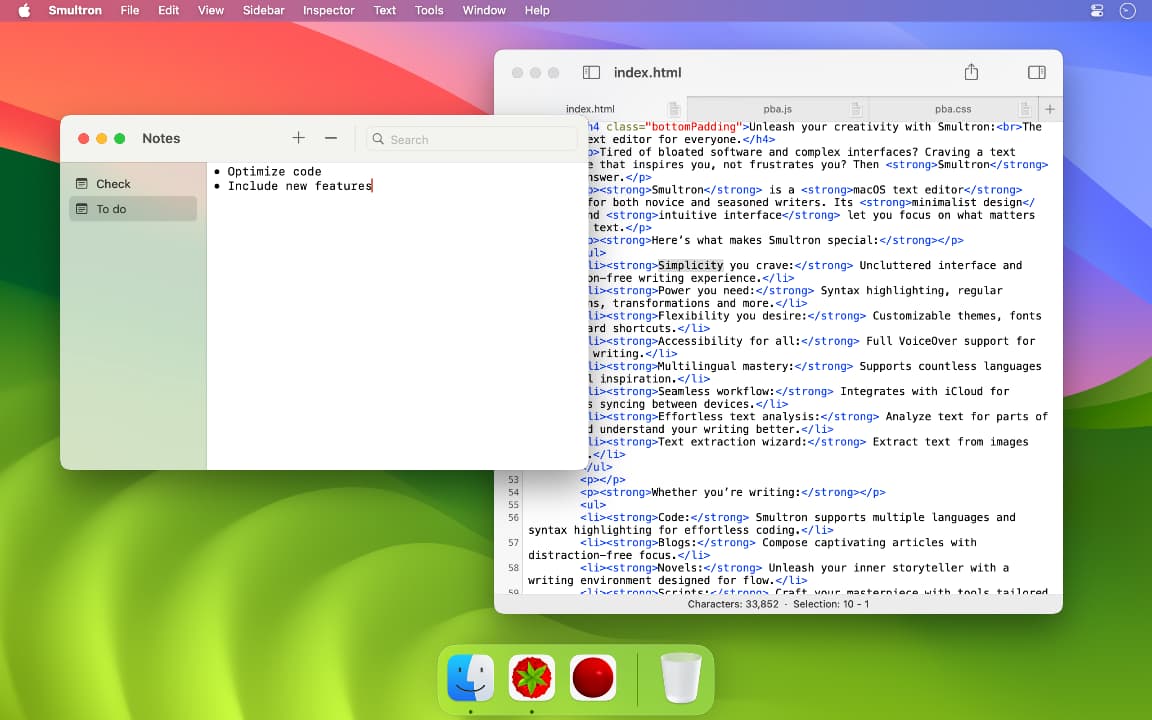
- Notes
- Faster and more efficient
- Improved and faster syntax support
- New syntax support for Futhark, Mojo, Odin, OpenSCAD, Pkl, Protocol Buffers, VTT and XMP
- Optimized for macOS Sonoma
- Improved advanced find, columns, compare and info
- Many, many more improvements and bug fixes
Screenshots
Smultron versions
| Smultron | macOS | Note |
|---|---|---|
| Smultron 14 | 14 Sonoma or later | Buy license |
| Smultron 13 | 12 Monterey or later | See answer below |
| Smultron 12 | 10.14.4 Mojave or later | See answer below |
| Smultron 11 | 10.13 High Sierra | See answer below |
| Smultron 10 | 10.12 Sierra | See answer below |
| Smultron 9 | 10.12 Sierra | Get Smultron 10 instead |
| Smultron 8 | 10.11 El Capitan | See answer below |
| Smultron 7 | 10.10 Yosemite | See answer below |
- How can I get a license for an earlier version?
- You can only buy a license for the latest version but if you need a license for an earlier version you can get it by following these two steps:
(Earlier versions do not include all features listed on this site.)
FAQ
I recently bought a license for Smultron 13, can I upgrade for free to Smultron 14?
If you bought a license on or after 1 January 2024 you can get a free upgrade. Contact us with proof of purchase and we’ll send you a new license. If you bought Smultron 13 before that date you need to buy Smultron 14 in Mac App Store or get an upgrade license Smultron Store.
Is version 14 a paid upgrade?
Yes, if you have an earlier version you can either buy it from Mac App Store or get an upgrade license in Smultron Store.
Is it optimized for Apple silicon (M1/M2/M3/M4)?
Yes.
Is there a demo version?
Download the app and you’ll have all the functionality except that you can’t save a document until you buy a license.
How can I buy a license?
You can either buy it from Mac App Store or buy it from the Smultron Store (if you download the app you can also buy it from within the app by choosing Purchase... from the Smultron menu to use the secure built-in store).
How do I register the license?
Choose License... from the Smultron menu and input the exact license you received in the confirmation mail.
Why can’t I update my app bought from Smultron Store?
Because of security measures in macOS you have to move the app at least once before you can update it. So if for instance you downloaded the app to the Downloads folder on your Mac, quit the app and then just move it to the /Applications folder and then you can update it.
Some of my images and my CSS aren’t loaded in Preview?
Because the Mac App Store version of Smultron is what is called sandboxed (to protect you and your computer) it can’t read files that aren’t open in Smultron. You can solve it by opening the individual files in Smultron or open an enclosing folder in Folders, which will then allow Smultron to read all those files. If the images and CSS files are directly accessed from the web, make sure that they are using https.
Is VAT included in the EU price?
Yes. And if you are registered as a company in EU and have a valid VAT ID you can buy it without VAT on the Smultron Store.
Can I change the file extension a particular syntax uses?
Yes, you can do that in Settings - Advanced. Choose the syntax in the menu and then add or change the extension in the text field next to the menu (a space between each extension and no dots).
How do I assign a keyboard shortcut to any menu item?
You do this in System Settings - Keyboard - Shortcuts. Choose App Shortcuts and then press + and then choose Smultron and write the exact name of the snippet or command.
How do I change a keyboard shortcut?
You do this in System Settings - Keyboard - Shortcuts. Choose App Shortcuts and then press + and then choose Smultron and write the exact name of the menu item and choose a new shortcut.
Why does it insert an extra space when pasting some text?
That is a standard system feature which is there to help you with pasting text. But you can turn it off by deselecting Smart Copy/Paste in the Edit menu, under Substitutions
Why does it replace some of the text I write with another character?
That is a standard system feature which is there to help you write those characters. But you can turn it off if you want in the Edit menu, under Substitutions just deselect Text Replacement. What exactly is replaced is decided by System Settings - Keyboard - Text.
How can I open “hidden” files?
When you are in the standard open dialog just press Command and Shift and a dot.
How do I change the language Smultron uses?
The language used is determined by your system setting in System Settings - Language & Region.
How can I show hidden files in Folders?
Quit Smultron and write the following command in the Terminal app:
defaults write com.peterborgapps.Smultron14 FoldersShowsHidden -bool true
Is there a command line utility?
There isn’t a command line utility available for Smultron but you can use standard commands to do the same thing (and more). Use for instance:
open -a /Applications/Smultron.app /path/to/file
open -a /Applications/Smultron.app /open/all/in/this/folder/*
You can also go directly to a line and a column by including the -l and -c flags (you don’t need to use the -c flag), like this to go to line 8 and column 2:
open -a /Applications/Smultron.app /path/to/file --args -l 8 -c 2
How can I import or export Snippets, Commands etc.?
If you use Migrate Assistant to move to a new Mac all settings will be moved automatically. If you want to move for instance Snippets, Commands, Notes or Bookmarks to another Mac you can copy the appropriate file from this folder:
~home folder~/Library/Group Containers/HT76L9L9RG.com.peterborgapps.Smultron/Library/Application Support/
to the same folder on the other Mac.
If you want to move the Themes settings you can find the file here:
~home folder~/Library/Group Containers/HT76L9L9RG.com.peterborgapps.Data/Library/Application Support/
Contact us if you need to import data from an earlier version of Smultron.
How does Bookmarks work?
You can see any bookmarks by opening Bookmarks from the Inspector menu. Each bookmark represent a line in a document.
By default each bookmark is sorted after the line that it is represents under the document it was created from. You can rename any bookmark by ctrl-clicking on it and choose Rename. And you can mark a bookmark as ticked by clicking on the icon next to each bookmark.
To remove a single bookmark you can swipe on it or ctrl-click and choose Remove Bookmark. And to remove all bookmarks for a document, ctrl-click and choose Remove Bookmark on the document title.
You can create a new bookmark by choosing Add Bookmark from the Inspector menu.
Is Smultron “sandboxed”?
The Mac App Store version of Smultron is sandboxed but Smultron 14 released outside the Mac App Store is not sandboxed. A sandbox means that it restricts access to files that it hasn’t been given specific access to, by for instance opening them manually in Smultron. If you have the Mac App Store version and you for instance have a command that access a file and it doesn’t work, you can first try to add the folder the file is in to Folders in the Tools menu. And if it still doesn’t work you can contact us and switch to the other Smultron version and see if that works.
Why do I need to allow a background item?
When the application requires additional permission, such as when saving a file or updating the application, it prompts you the first time to grant a background task the ability to run. You can grant this permission in the displayed notification or under the “Allow in the Background” option in System Settings. Once you have granted permission, you can attempt the action once more.
If you have authorized the background task to run, you will only encounter this prompt once; thereafter, the action will execute automatically in the background.
In the event that there is an issue with executing your action and the background task has permission to run, you can attempt to disable the permission in “Allow in the Background” in System Settings and then re-enable it and retry the action.
Compare
| Mac App Store | Smultron Store | |
|---|---|---|
| Price | US$ 9.99 | US$ 9.99 |
| Upgrade price | US$ 6.99 (from purchase after 1 January 2019) | |
| Site license | US$ 49.99 | |
| Buy with Apple-ID | ✓ | |
| Buy without Apple-ID | ✓ | |
| Audited by Apple | ✓ | |
| Notarized by Apple | ✓ | |
| Optimized for M1 | ✓ | ✓ |
| EULA | Apple | Peter Borg Apps |
Languages
Smultron 14 is available in these languages:
- English
- Arabic (عربى)
- Chinese Simplified (汉语)
- Chinese Traditional (臺灣華語)
- Czech (Čeština)
- Danish (Dansk)
- Dutch (Nederlands)
- Estonian (Eesti)
- Finnish (Suomen)
- French (Français)
- German (Deutsche)
- Greek (Ελληνικά)
- Hebrew (עִברִית)
- Hindi (हिन्दी)
- Hungarian (Magyar)
- Icelandic (Íslenska)
- Italian (Italiano)
- Japanese (日本語)
- Korean (한국어)
- Latvian (Latviešu)
- Lithuanian (Lietuvių)
- Norwegian (Norsk)
- Polish (Polski)
- Portuguese (Português)
- Russian (Русский)
- Spanish (Español)
- Swedish (Svenska)
- Turkish (Türkçe)
- Ukrainian (Українська)
Code Languages
Smultron 14 har syntax coloring and support for these code languages:
ActionScript, Active4D, Ada, AMPL, Ansible, Apache, AppleScript, Arduino, Assembler Atmel AVR, Assembler x86, Assembler MIPS, Assembler PPC, ASP - JavaScript, ASP - VB, ASP.NET - C#, ASP.NET - VB, AWK, Batch, C, C++, C#, Ceylon, Clojure, Cobol, CoffeeScript, ColdFusion, Crystal, Csound, CSS, CUDA, D, Dart, Diff, Dylan, Eiffel, Elm, Erlang, eZ Publish, F#, Final Cut Pro XML, Fortran, Fountain, FreeFem++, Futhark, GEDCOM, GIFT, GNU Assembler, Go, Gravity, Groovy, Hack, Haskell, Header, HTML, IDL, Idris, Java, JavaFX, JavaScript, JSON, JSP, Julia, Kotlin, LaTeX, LESS, Lilypond, Lisp, Logtalk, LSL, Lua, Make, Markdown, MathProg, Matlab, Metal, MetaPost, MEL, Metaslang, Modula-2, Mojo, Multi User Forth, MySQL, Nemerle, NEURON, nginx, Nim, Notation3, NPL, Objective Caml, Objective-C, Odin, OpenSCAD, Ox, PARI/GP, Pascal, PDF, Perl, PHP, Pkl, Plist, PostScript, PowerShell, Processing, Prolog, Protocol Buffers, Python, Quanty, R/S-PLUS, Rebol, Rexx, RHTML, Ruby, Rust, SAS, Sass/SCSS, Scala, Scheme, Servoy JavaScript, SGML, Shell, Smalltalk, SML, SQL, Stata, Strings, Stylus, SuperCollider, SVG, Swift, Tcl/Tk, TorqueScript, Turtle, TypeScript, Udo, UnityScript, V, VB, Verilog, VHDL, Vue, WebAssembly, Xcode config, XLIFF, XML, XMP, XQuery, YAML, Zig, Zimbu
Some Features
Plist
You can edit a plist that is open in a document (Smultron reads both XML and binary plists) by choosing Plist from the Tools menu. If you want to create a new plist you can just choose Plist from an empty document and you can also select a plist portion in a document to just edit that plist. When the Plist interface appears you can change between a key or an array plist by ctrl-clicking on the header. You add or remove keys and items by using the + and - buttons. And you can reorder an array by dragging an item. You can swipe to delete and for items that contain subitems you hold the Option key if you just want to select it rather than see the subitems.
Text scanner
By choosing Text scanner from the Tools menu, you can choose an existing image on your disk or take a photo on your iPhone/iPad and Smultron will analyze the image and extract the text from it. The finished text result can vary depending on the language and the quality of the image. To take a photo from an iPhone or an iPad you need to make sure that Continuity is activated on all the devices. See more info here.
Language
By choosing Language from the Tools menu, the selected text or the whole text if nothing is selected, will be analyzed and you can see what words are nouns, verbs and so on. It doesn’t right now work with all languages.
Focus
When you choose Focus from the View menu Smultron will remove all distractions and only show a smaller part of the text so that you can focus on only the content.
Columns
By choosing Columns from the Tools menu, the selected text or the whole text if nothing is selected, will be divided by its separator. For instance if you have tabular data separated by commas, each value will get its own column and each line its own row. The first line of data will be used for the column headers. Then you can sort the data by clicking in the header, rearrange the order of the columns, and by ctrl-clicking on a value or a row or a column you can edit the value or remove a column or row. You can also choose to change the separator to for instance a semicolon instead when you ready to reinsert the changed data.
Split window
From the View menu you choose the split the window so that you can see two different parts of the document. By holding the Option key when you select the menu item you split the window horizontally rather than the default vertical split.
Folders
With Folders you can choose a folder from your disk and it will show all its content, including subfolders, in its window in Smultron so that you can easily select a file to open it as a document in Smultron. You can also filter to see only the documents that you are interested in.
Compare
With the Compare feature in the Tools menu you can compare two open documents, that has been saved at least once. The changes will appear both color coded and with a symbol at the beginning of the change: green and a “+” for added lines, red and a “-” for deleted lines, yellow and a “•” for changed lines.
View in full screen
You can edit the document in full screen by choosing “Enter Full Screen” in the View menu (nothing else will be visible but you can show the menu bar by moving your mouse to the top of the screen).
Functions
You can see a list of all the functions in your document in the Tools menu or with the toolbar item and go directly to that function.
Snippets
Snippets are pieces of text that you use often or want easy access to. Include a %%s in the text and it will be replaced by the current selection. Include a %%c and the cursor will be placed at that position after the snippet has been inserted. You can insert or edit the snippet by selecting it and then click on an icon at the bottom. You can also double click on an item in the list to insert the snippet into the current document or hold the Option key with a double click to edit the snippet.
Close tag
This tries to find the correct tag to close by calculating the number of tags that has been closed and opened so it will find the last tag that hasn’t been closed. Note that this feature only works with tags surrounded by < and >.
Preview
With this you can preview the content of the current document. You can choose to open it in Smultron or in the app that has been chosen in the system (using Info in Finder) for that kind of document.
Commands
You can run commands from within Smultron if you for instance want to compile some code or validate an HTML document. The result from the command is shown or inserted into the text if inline has been chosen. There are some special code that you can include in your command: %%p to get the full path of the current document, %%d for the directory, %%s is replaced by the selected text, %%t is replaced by the path to a writeable temporary directory. You can run or edit the command by selecting the item and then click on an icon at the bottom. You can also double click on an item in the list to run the command. To work with all files on your Mac you might need to make changes to System Settings - Security & Privacy - Privacy.
Comment or uncomment
Inserts a single-line comment character(s) for instance // for a PHP-document at the beginning of the line or removes any existing comment. The menu item is only available if the language uses a single-line comment.
Invisible characters
Shows a symbol for characters that are usually not seen, instance space, tab and new-line.
Remove needless whitespace
Removes any possible spaces or tabs after the text and before the line break.
Notes
With the notes feature you can write down any notes that you need. You create a new note by pressing the “+” button and everything is saved automatically.
Settings
General
- Appearance: keep the system default or override the system setting in Smultron for light or dark mode
- Auto complete: decides if Smultron should show complete suggestions automatically after a delay and whether it should include standard words for your language, like for instance “computer” rather than just words from the current programming language
- Show in status bar: decides what information should be shown in the status bar for each document, please note that the number of characters selected is only shown if there is text selected
- Documents: sets if the open documents and windows should resume at startup as they were when you last quit the app and if documents should by default open in tabs (you can change it afterwards on an individual basis in the Window menu) and if the Command key plus a number should use the current tab order or the order used in Open Documents, as well as if each tab should show its icon
- Indent new lines automatically: this gives a new line the same indentation as the previous line
- File name extension: this is used to automatically give a new document a file extension
- Converts line endings when saving: this converts all the line endings in the document to the chosen type when the document is saved
Themes
Here you decide first which theme the light or dark appearance should use. And below that you can select one of the themes and then edit its fonts and colors.
Advanced
- Autosave: decides if Smultron should automatically save the document regularly, turning this off means that some features such as Versions and Share will stop working
- UTF-8 BOM: this includes a UTF-8 BOM for documents when using the UTF-8 text encoding
- Use spaces instead of tabs: sets whether when, for instance pressing the tab key, the number of spaces under Tab width should be inserted rather than a tab character
- Open document with text encoding: setting this always opens documents with the specified text encoding rather than trying to guess which encoding the document uses
- Colors: the color model used when inserting a color value from the Tools menu
- Default syntax: the syntax to use when opening a new empty document
- Tab width: the number of spaces a tab characters is equal
- Line spacing: with this you change how far apart the lines should be without changing the font
- Show page guide, at column: shows a line in the document at the specified column, note that if you use a font that is not monospaced the position of the line is undefined
- Shell: the command used when for instance using Run Current Text
- File extension: here you can decide which syntax should be chosen for a specific file extension, first choose the syntax and then add or change the file extension, without a dot and with a space between each extension
Regular Expressions
In Advanced Find you can use regular expressions to find and to replace whatever you want. Regular expressions are very powerful but also quite complicated to use properly. Below is a short list of some expressions you can use when searching but for a complete list you can go to: https://unicode-org.github.io/icu/userguide/strings/regexp.html
| ^ | Start of a string |
| $ | End of a string |
| . | Any character (except \n) |
| * | 0 or more of previous expression |
| + | 1 or more of previous expression |
| ? | 0 or 1 of previous expression |
| \w | Matches any word character |
| \W | Matches any non-word character |
| \s | Matches any white-space character |
| \S | Matches any non-white-space character |
| \d | Matches any decimal digit |
| \D | Matches any nondigit |
| \R | Matches all variants of line endings |
| [abc] | Matches any single character included in the set |
| [^abc] | Matches any single character not in the set |
| [a-z] | Contiguous character ranges |
| (a|b) | a or b |
| ab{2} | Matches two b characters |
Release notes
14.4
- Translated into Czech, Estonian, Hungarian, Icelandic, Latvian, Lithuanian, Polish and Turkish
- Updated for macOS Tahoe
- Updated icon
- Some small bug fixes and improvements
14.3
- Added way to change the writing direction (in the Text menu)
- Added syntax coloring for Zig
- Fixed a possible problem with reopening previously opened documents
- Some small bug fixes and improvements
14.2
- Improved Writing Tools support
- Faster
- Added syntax support for V
- Some small bug fixes and improvements
14.1
- Updated for macOS 15 Sequoia
- Faster
- Some internal changes and improvements
- Some small bug fixes and improvements
End User License Agreement for Smultron
By using the licensed or demo version of Smultron you agree to the following (this only applies when you get the license from Smultron Store - the EULA for Mac App Store can be found here):
- Smultron is licensed to you, not sold
- A standard license allows you to use Smultron on all computers that you personally own and control
- An upgrade license can only be used if you previously have bought a Smultron version
- A site license can be used on an unlimited amount of computers within a single organization on the same physical site, e.g. a school or an office building
- Do not share your license information with external parties
- Comply with all applicable laws
- If you get a refund within 14 days you cannot use it anymore
- Be kind and considerate to others
- The copyright of Smultron is owned by Peter Borg Apps AB and is protected by copyright laws
- Smultron is provided “as is” and Peter Borg Apps AB expressly disclaims any warranty for it
- In no event shall Peter Borg Apps AB be liable for any damages rising out of use of Smultron