
“It’s just a great Mac utility from a great Mac developer.”
Jump to: Lingon • Lingon Pro • What’s new • Screenshots • FAQ
Run whatever you want, whenever you want
Lingon makes scheduling apps, scripts, shortcuts, and commands feel simple. Create a task in minutes, run it on a schedule, and stay in control.
Lingon helps you run whatever you want whenever you want without living in Terminal. Schedule apps, scripts, shortcuts, and commands with a clear, friendly UI.
Run tasks at specific times, on intervals or at login. Optional notifications make it easy to keep control.
Two separate apps. Lingon is the simpler Mac App Store version and free to use, while Lingon Pro is the advanced one-time purchase with extra power.
Lingon is easier to use, can send a notification when it runs something, and runs tasks from the menu bar or with a hot key from anywhere to, for instance, launch an app, a shortcut, or a backup script.
Lingon Pro (previously Lingon X) can run tasks as root and is a fully featured launchd editor. It can also monitor all tasks in the background.
Lingon
Lingon is completely free to download and use, with no subscriptions or hidden costs.
If you find it useful and want to support continued development, a donation (from within the app) is always very warmly appreciated — but entirely optional.
Lingon Pro
Lingon Pro is the advanced standalone app with a one-time purchase.
Free to download and try out.
Need an upgrade or site license? Upgrade or Site.
Prefer a full checkout page? Click here.
✔Secure checkout via FastSpring
✔VAT handled automatically
✔Instant license delivery
✔Pay once for Lingon Pro 10 and use it forever
✔14-day refund guarantee – no questions asked
New in Lingon 10
Lingon 10 has many new features and improvements:
- A more delightful experience and easier to use
- Get a notification when the task runs
- Easier to choose an app or a shortcut to run
- Run a task directly from the menu bar from any app
- Run a task from Siri or from Shortcuts
- More scheduling options
- Free to use with no subscriptions
- Translated into 20 languages
- Many more improvements
- Optimized for macOS 14 Sonoma and later
New in Lingon Pro 10
Lingon Pro 10 has many new features and improvements:
- Now uses tabs and multiple windows to allow work on multiple tasks
- An easier and more secure way to authenticate when saving root tasks
- Familiar but with a refined user interface
- Use Apple Intelligence to create or change a script
- Improved log, login items, list mode and smart folders
- Undo available when editing tasks
- Drag and drop to the app icon to create a task
- Save tasks without reloading them by holding the Option key when saving
- Changes and selections are preserved the next time you open the app
- Faster and uses less memory
- Many more improvements
- Optimized for macOS 14 Sonoma and later
Screenshots - Lingon 10
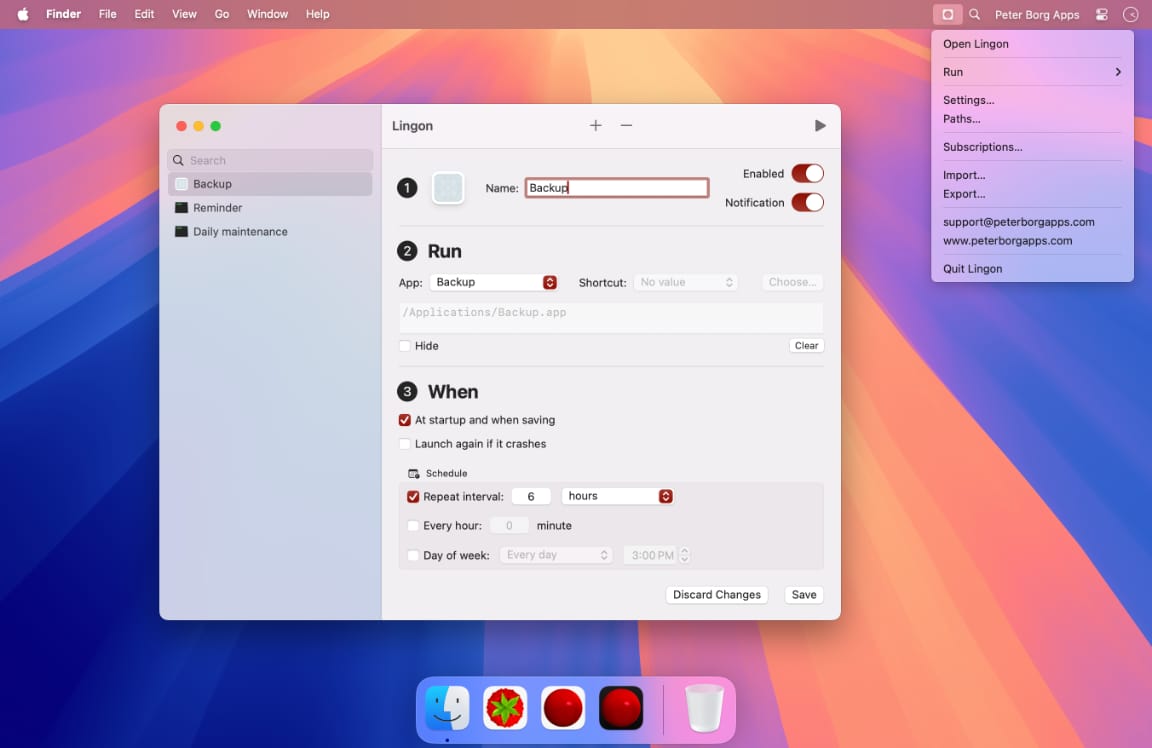
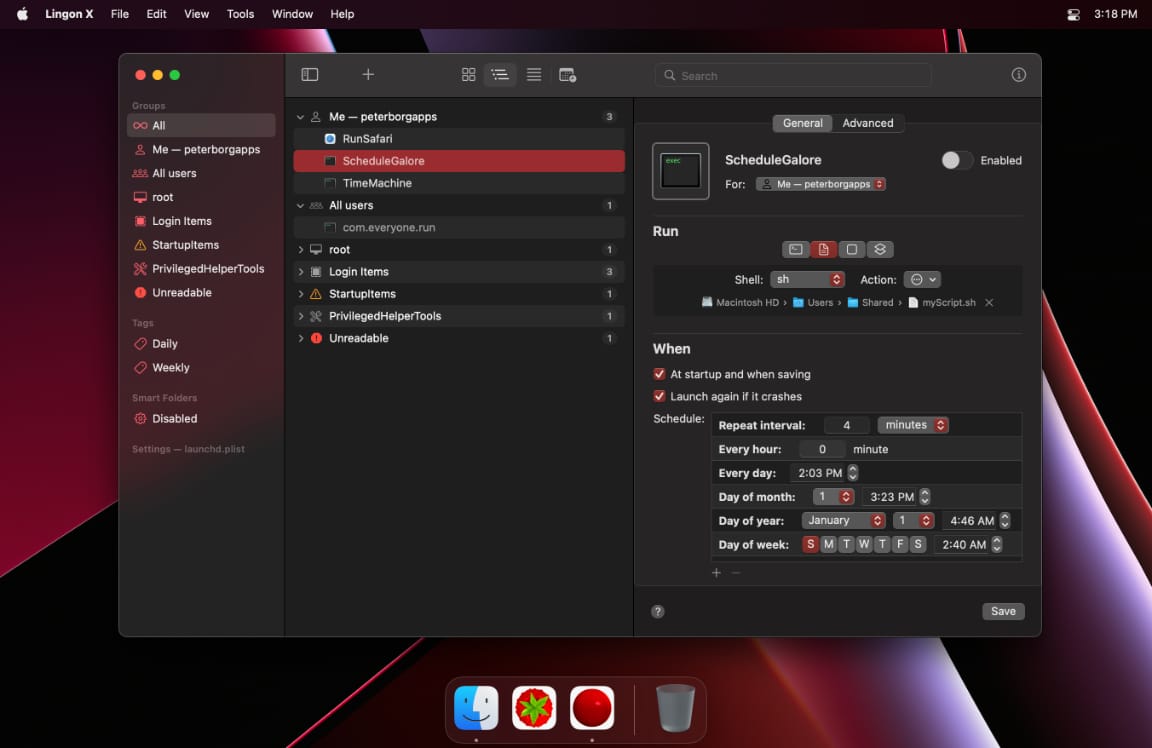
Screenshots - Lingon Pro 10
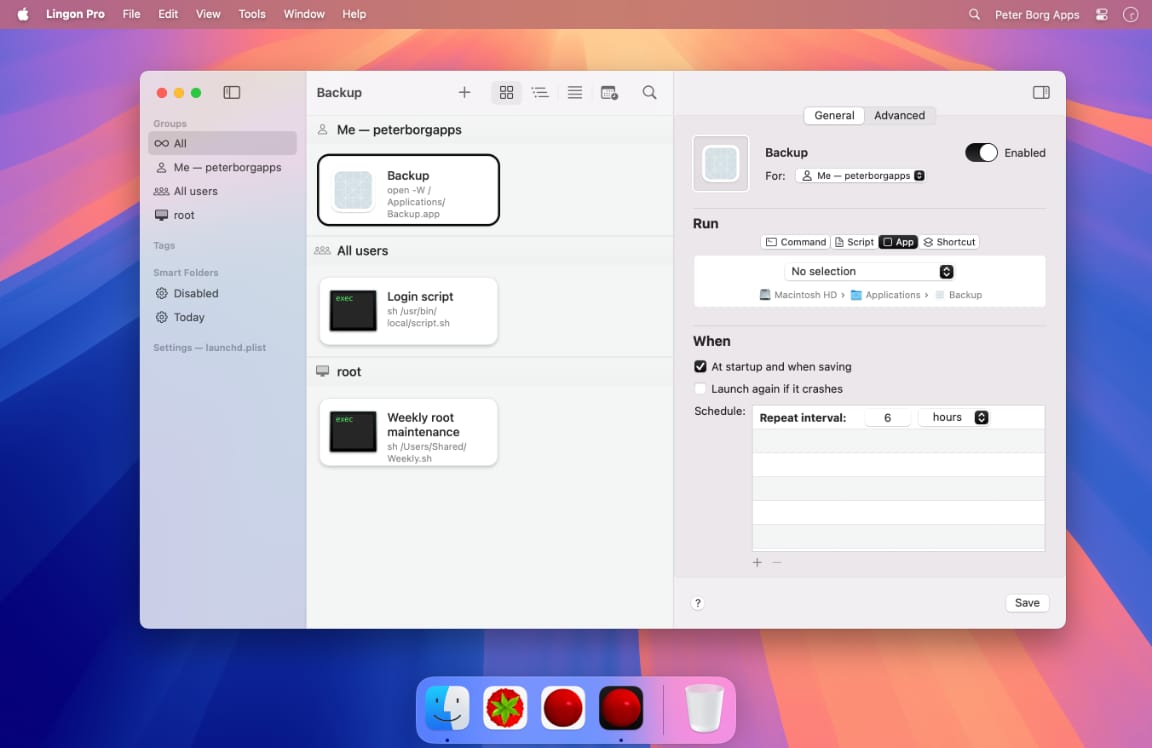
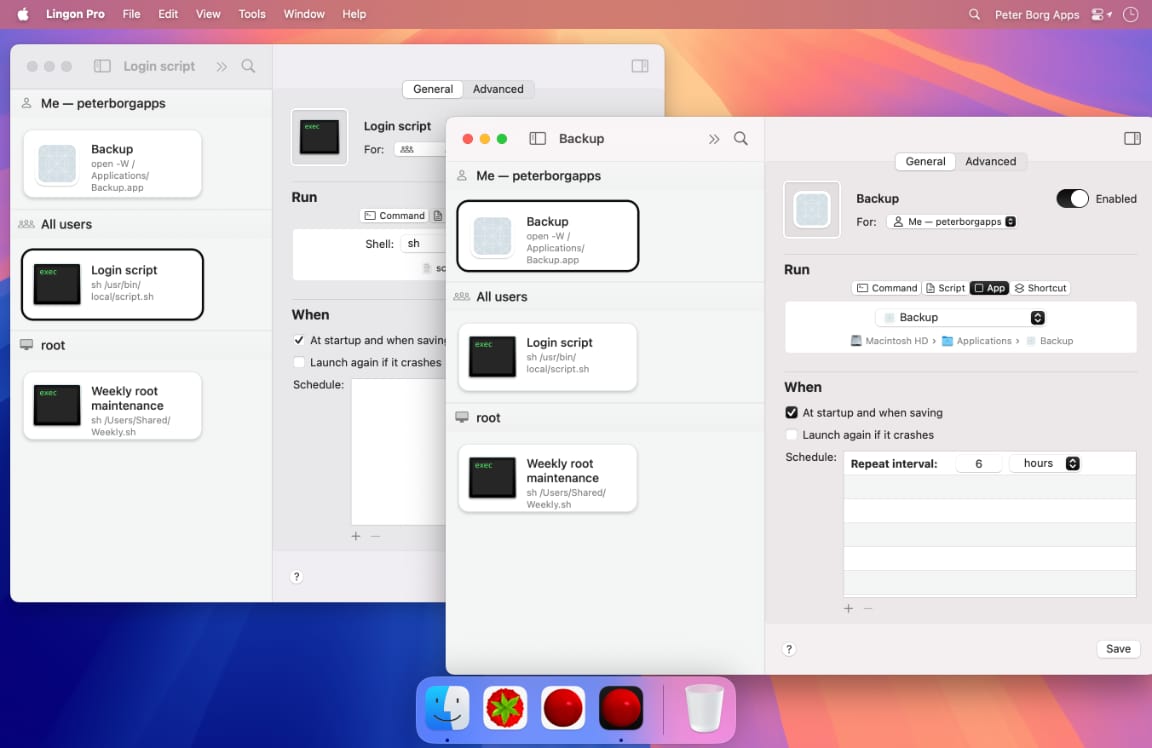
Other versions
Two separate versions
There are two separate versions of Lingon available: Lingon and Lingon Pro.
The two separate versions have their own advantages but both are even better than the previous versions and packed with power.
Compare Lingon and Lingon Pro›Lingon
Only version 10 of Lingon is available at the moment. It is free to download and use.
Lingon X/Pro versions
Lingon Pro is not available in Mac App Store because of its rules limiting what an app can do.
| Lingon X/Pro | macOS | Note |
|---|---|---|
| Lingon Pro 10 | 14 Sonoma or later | Buy license |
| Lingon X 9 | 12 Monterey or later | See note below |
| Lingon X 8 | 10.14.4 Mojave or later | See note below |
| Lingon X 7 | 10.14.4 Mojave | Get Lingon X 8 instead |
| Lingon X 6 | 10.13 High Sierra | See note below |
| Lingon X 5 | 10.12 Sierra | See note below |
| Lingon X 4 | 10.11 El Capitan | See note below |
- How can I get a license for a previous Lingon X version?
- You can only buy a license for the latest version but if you need a license for an earlier version you can get it by following these two steps:
Earlier versions do not include all features listed on this site.
How-to
You can do many things with both versions of Lingon. Here are a few examples:
Create a new task
- Click on New in the toolbar
- Give it a name
- Choose under Run what you want to run or write a command
- Then under When choose how often you want it to run
- Save it
Edit an existing task
- Select the task from the list
- Make the changes you want and choose Save to save and reload the task
Delete an existing task
- Select the task from the list
- Lingon: Click on “-” in the toolbar
- Lingon Pro: Choose Delete from the File menu
Task settings
Here is some information about the settings for a task.
For more advanced settings in Lingon Pro, choose Advanced at the top and then either hover over a control to see the tooltip or choose “man launchd.plist” from the Help menu to see what they do.
Name
You should to give your task a unique name which no other task on the computer uses or it may not run properly.
Enabled
If this is turned off, it will stop the task and the task will not run until it is turned on again.
For - Lingon Pro
If you choose your own username it will only run when you are logged in. If you choose to run it for “Everyone” then it will run when any user is logged in. And if you choose to run it as root then it will load directly when you Mac boots up and run as the privileged root user. Please note that you may need to authenticate as an administrator when saving using the last two settings.
Run
Write a command, a script or choose an app or a shortcut. The easiest way to get everything right is to use the action button and Choose... to select what you want to run. If you write a script please use the whole paths to any commands in the script.
When
Here you can choose when your task should run
- At startup and when saving: starts the task when you save it and when you login or start the computer
- Launch again if it crashes: keeps the task running all the time and restarts it if it crashes. Use SuccessfulExit under Advanced to change if it should restart automatically if you manually quit it.
- Schedule: here you set when it should run or if you want to want it to run repeatedly and with what interval, press the plus button to add more items
FAQ - Lingon
I can’t see the app window or how can I use the app after I open it?
Lingon is a menu bar app so it only has an icon at the top right in the menu bar. If you click on that icon you can choose what you want to do and to see the main window just choose “Open Lingon” at the top.
How can I support Lingon development?
Lingon is free and there are no subscriptions. If you enjoy using it and would like to support continued development, you can make a donation from within the app. It is entirely optional and always appreciated.
Does Lingon support family sharing?
Yes, since Lingon is free it can be downloaded by anyone.
Is Lingon really free?
Yes, Lingon is completely free with no trial period, no subscriptions, and no restrictions. Download it and use it as long as you like. If you find it valuable, a voluntary donation from within the app is a great way to support its development.
How does a hot key work?
(Hot keys for tasks only works in macOS 15 Sequoia or later for technical reasons.)
By assigning a hot key to a task in Lingon you can run that task from any app you are using in your macOS by just pressing that key combination. And you assign a hot key by first make sure that the task is shown by selecting in from the list. Then click on the hot key text field, then press the key combination that you want. (Please be aware of that the system might reserve some key combinations and they will not work for you.)
If you want to replace it with a new key combination just make sure that the hot key text field is selected and then press the new combination
And if you want to remove the hot key just click on the clear button in the hot key text field.
Will the task run if I quit Lingon?
No. The tasks will not run if Lingon has quit, so Lingon needs to run all the time for your tasks to run. But you can close the main window and the tasks will continue to run.
What happens if my Mac is sleeping?
If your Mac is at sleep when a task is scheduled to run, it will not run. But the task will run at the next scheduled time.
Why doesn’t my task run? My command/script runs in Terminal so why does it not work in Lingon?
macOS nowadays requires extra permissions for many things to allow them to run and Terminal might already have those permissions. So one needs to tell the system that you allow for instance a path to be accessed.
To do that you can choose Paths from the Lingon menu and add that path to tell the system that you allow Lingon to access those paths. You can also add folders to allow access to all files in that folder if, for instance, you want to access multiple files within one folder.
Another option, that might be simpler, is to add Lingon to Full Disk Access in System Settings > Privacy & Security. Then Lingon will get access to all files.
If you try to run a Shortcut it might require that you add Lingon to Full Disk Access
Why is the Run text field locked?
If you have chosen for instance an app to run, Lingon keeps track of it internally and one cannot then change the Run text field. If you have changed your mind and want to run something else just use the “Clear” button below the text field to be able to choose or write anything.
How can I run a task from Siri or Shortcuts?
You can run a task from Siri with your voice or with text. If you for instance have a task called “MyScript” you can run it with this phrase: “Run MyScript in Lingon”.
How can I stop a task?
Due to Mac App Store rules you cannot, for instance, quit an app from Lingon. So unfortunately you need to quit an app manually. But if you turn off Enable for that task it won’t run again.
Can I run a task as root?
No, you need Lingon Pro to run something as root and this is because of Mac App Store rules.
Is it optimized for Apple silicon?
Yes.
Where are the tasks saved?
The tasks are saved in this file:
~home folder~/Library/Group Containers/HT76L9L9RG.com.peterborgapps.Lingon/Library/Application Support
If you choose Export… from the Lingon menu you will copy that file to wherever you choose.
How does import work?
If you have exported all tasks from Export… you can import them again, for instance on a new Mac, just choose Import… from the Lingon menu and choose the file.
You can also import launchd tasks from for instance older versions of Lingon by choosing Import… and choose the file. But be aware that the new version of Lingon does not support all features of launchd.
Which calendar does it use?
Lingon uses the Gregorian calendar.
How can I use natural language to create a task in Tahoe and later?
Click on the create with natural language icon in the toolbar and then write in natural language what you want to call the task, what it should run and when it should run.
Here are some examples of phrases you can use:
- Create a task called Web that starts the Safari app every Tuesday at 9 am
- Create a task called Morning Notes that starts the Notes app at startup
- Create a task called Keep Music Running that starts the Music app and launches it again if it crashes
- Create a task called Update Network that starts the shortcut "Pause" at wake.
FAQ - Lingon Pro
I recently bought a license for Lingon X 9, can I upgrade for free to Lingon Pro 10?
What happened to Lingon X?
Lingon Pro is the new name for Lingon X.
How can I authenticate as an administrator to run privileged tasks?
The first time you need extra permission, for instance to save a task that should run as root, the system will ask you with a notification if you really want to do that. In that notification choose “Allow“ from the menu and then you might need to authenticate as an administrator.
Then you need to retry your action again.
It can perhaps seem a bit complicated but it is a more secure way than previous versions and you will only need to do this once.
If you want to revoke this permission you can do it in System Settings > General > Login Items. Just turn off the switch for Lingon Pro under “Allow in the Background”.
In the event that there is an issue with executing your action and the background task has permission to run, you can try to disable the permission in “Allow in the Background” in System Settings and then re-enable it and retry the action.
Why doesn’t my task run? My command/script runs in Terminal so why does it not work in Lingon?
macOS nowadays requires extra permissions for many things to allow them to run and Terminal might already have those permissions. So one needs to add the required permissions to allow it to run. There are a few ways you can do this:
- The easiest way to do that is to create an app and run that instead. You can do that by choosing “Build an App” from Run in Command and Script and also from Edit Script. After you have built your app, double click on it in Finder once and the system will ask you for the required permissions and then you can make sure that the app is chosen in Run.
- You can also make sure that the whole paths to any commands are included. And for any script that you run, make sure that the script is an executable or is run with a command such as “/bin/sh”. And if your task uses relative paths you can set the WorkingDirectory under Paths so that all files can be found.
- If the system has disabled the task for some reason (check this in Disabled from the Tools menu) you can try to simply change the name slightly (for instance add a number).
- You can also check that all paths under Path for instance for StandardErrorPath are writable for the user that runs the task, otherwise the system might not run the task.
- Another possible solution you can try is to run a command in a shell like this in “Run” (you can do this automatically from the action menu button next to the text field):
/bin/sh -c "your command here"
I can’t update Lingon Pro, what is wrong?
Because of security measures in macOS you have to move the app at least once before you can update it. So if for instance you downloaded the app to the Downloads folder on your Mac, quit the app and then just move it to the /Applications folder and then you can update it.
Is there a demo version?
For Lingon Pro you can download the app and you’ll have all the functionality except that you can’t save or delete a task until you buy a license.
How can I use Apple Intelligence?
When you edit a script or create a new script under Script in Run you can click on Writing Tools and then click in the “Describe your change” field at the top. And there you just write what you want.
Some examples are: “Create a bash script that checks if the Backup process is running and, if it isn’t running, start it”, “Add meta data flag to all rsync commands” or ask it to describe what this script does.
Is it optimized for Apple silicon?
Yes.
How does the Power feature work?
With Power from the Tools menu you can schedule your Mac to for instance wake or sleep at any time. At the moment you can only schedule one kind at the time. And it only works if your Mac is connected to a power source.
How does Smart Folders work?
You can create a new smart folder by choosing New Smart Folder from the File menu. With that smart folder you can organize your tasks the way you want by adding and changing various rules in that user interface and that folder will always display all tasks that matches those rules. You can use things like enabled status, all launchd.plist keys, tags and other things to create those rules. And in the bottom part of that view you can see a preview of all the tasks that will match your rules. You can edit the rules of by choosing Smart Folders from the Tools menu.
Where can I find the status of a task?
The status of a task can now be found in Info (from the File menu) for that task. If it is running it also shows the PID. The value is automatically updated every few seconds.
What is Disabled in the Tools menu?
The system can for a number of reasons disable a task and then it won’t run whatever settings Lingon Pro uses. The disabled tasks are usually shown in some special system files and you can see the disabled tasks in them by showing Disabled from the Tools menu. Unfortunately there isn’t an easy way to change this in the system so the easiest solution is to rename the task in Lingon Pro.
How does the Log feature work?
When you use the Log feature for an applicable task, Lingon Pro tries to filter the system logs for that task and show it to you. It can take a while to process the logs and make sure that you use a unique name for your task to make sure that it can find the appropriate log items. You can also change the time span that it should look for (longer time spans may not show all results for that period) and filter and sort the result. When running Lingon Pro as a non-administrator user it may not show all results.
How does the Lingon’s own agent work and why do I get a notification?
Lingon Pro includes an agent that can run in the background and restarts automatically after a restart. It monitors the folders where tasks are saved and shows a notification (not when Lingon Pro is the current app) when a task is added, modified or deleted. See Settings > Notifications how you can turn off the agent completely or for individual tasks.
What is the com.peterborgapps.LingonProAgent process?
com.peterborgapps.LingonProAgent is the process name for the Lingon Pro Agent that runs in the background to show notifications when Lingon Pro is not running. It can be turned on and off in Settings > Notifications.
What is launchd?
Lingon Pro lets you run things automatically by modifying configuration files for the system process called launchd. This means that you can also edit or remove tasks created by other apps in Lingon. And the system handles running the tasks in the background so you don’t need to have Lingon open after you have saved your task.
How can I stop a task?
The easiest way to stop a task is to turn off Enabled. If you want to permanently delete the task you can do it with Delete in the File menu.
Can I run a task as root?
Yes, in Lingon Pro you can change “For” to root.
Will the task continue to run if I close Lingon Pro?
Yes. The tasks are run by the system so you can close Lingon Pro when you have saved a task after configuring it.
How can I quit an application?
There isn’t any built-in support for quitting a normal application. But you can do it with an AppleScript command, for instance to quit Mail write this command in Run:
/usr/bin/osascript -e 'tell application "Mail" to quit'
How can I buy a license?
You can buy Lingon Pro from our web store.
How do I register the license?
Choose License... from the Lingon Pro menu and input the exact values you received in the confirmation mail.
Is VAT included in the EU prices?
Yes. And if you are registered as a company in EU and has a valid VAT ID you can buy it without VAT.
Why are some tasks gray?
Tasks that aren’t enabled and will not run are shown in a secondary color.
Where can I find (to e.g. copy) the data files?
They are saved in:
~home folder~/Library/Group Containers/HT76L9L9RG.com.peterborgapps.Lingon/Library/Application Support/
How can I revert to an old version of a task?
Select a task and then choose Revert To in the File menu and then choose the date of the version that you want to revert to. This feature is path based so if you delete a task you can create a new file with the same name in the same folder and then choose an older version of the task. To delete all old revisions you can delete this file:
~home folder~/Library/Group Containers/HT76L9L9RG.com.peterborgapps.Lingon/Library/Application Support/Revisions.plist
How can I run a task after startup at the login window?
Choose LoginWindow at the LimitLoadToSessionType under Limits and then it will run when the login window appears and there is then no need to run the task as a root daemon.
What happens if my Mac is sleeping?
If your Mac is at sleep when a task is scheduled to run, it will run directly once your Mac has been turned on again. And if it would have run multiple times during the time it was asleep it will coalesce them so it will only run once.
How does Info work?
For launchd tasks Info shows the path to the file and the parts are clickable to open the folder in Finder. For tasks that are editable you can edit the plist directly if you want. And you can also choose to see the system’s own internal information about the task. For other kind of tasks it will show as much information about the task as possible.
Is the PATH variable set?
launchd doesn’t by default have the same PATH environment variable as for instance Terminal. Lingon Pro tries to help the user by writing the PATH environment variable to the EnvironmentVariables in the task. Lingon Pro only writes the PATH if it hasn’t already been set. The PATH that Lingon Pro writes is combined from /etc/paths, the files in /etc/paths.d, the default PATH used to launch all apps and then /usr/local/bin and /usr/local/sbin are also added. You can turn off this behavior in Settings.
How does Notes work?
Lingon Pro makes it possible for you to save a note for each task, even system tasks that can’t be edited. Select a task and then under Notes in the Advanced tab, click in the text field and the text you write is saved automatically. The notes are saved in the home folder so they are accessible only for that user. To delete all notes, delete this file:
~home folder~/Library/Group Containers/HT76L9L9RG.com.peterborgapps.Lingon/Library/Application Support/Notes.plist
How does Tags work?
Lingon Pro makes it possible for you to tag tasks with a word and organize them to only show those tasks by clicking on the word under Tags in the sidebar. You do this in Tags in the Advanced tab. The tags are saved automatically and they are delimited by a space, comma or a semicolon. To delete all tags, delete this file:
~home folder~/Library/Group Containers/HT76L9L9RG.com.peterborgapps.Lingon/Library/Application Support/Tags.plist
How can I run a task directly when the Mac boots?
Create a new task and choose to run it for root and then the task will start directly when the Mac boots and no user needs to have logged in.
What does the different view modes show?
- Grid - Lingon Pro tries to find and display the icon for what should run. If the task is disabled, its color will change and a disabled icon will show instead of the normal icon. If the task cannot be edited it will also show an extra icon.
- Tree - The tasks are listed hierarchically and also shows how many tasks each kind contains so that one can get an overview. To show all the tasks for a particular kind, one needs to expand that item.
- List - Lists all tasks and one can sort all the tasks with each column. One can also hide columns from the View menu or by ctrl-clicking on the table header.
- Timeline - It shows when the tasks that has a defined date will run (if a task has a repeat interval set it is shown at the top with its interval). The timeline shows dates up to one month from the current time.
What Login Items are shown?
Lingon Pro shows the login items that are shown in System Settings and these can be deleted but otherwise not modified.
Lingon Pro also tries to show apps from any application that include its own login items. These tasks cannot be deleted or turned off from Lingon Pro. You need to open its app to change that setting, if you select the login item in Lingon Pro you can choose Show in Finder from the File menu to open the app and change the setting.
How can I delete a key from a launchd plist?
You can delete a key by holding the Option key when unchecking a boolean value or when the key type is for instance a string, you do it by emptying the value completely.
How do I set a custom icon to a task?
Select the task and drag the image to icon field in the editing part of the window or click on the icon in the editing part and paste a copied image from the pasteboard. You can delete a custom icon by selecting it and press Delete/Backspace on the keyboard.
What does a “•” mean after a title in the settings part?
It means that section has a setting changed from the default and one can see the setting by clicking on the expand button.
Is Lingon Pro similar to cron?
Lingon Pro (and launchd) works in a similar way to cron but it is more powerful and the scheduling is a bit different. There is no direct conversion available from a cron task to a Lingon task but one can most often set up the Lingon task to run at the same time as a cron task. You can see all the cron tasks for the current user by selecting “cron” under “Groups” in the sidebar.
What does the Background Items show?
You can see more information about background items from the system by choosing Background Items from the Tools menu. These are items that are shown in System Settings > General > Login Items. You can e.g. search items to find an identifier you are looking for. Unfortunately it is not possible to change these in any way.
You can see some more information about this here: https://support.apple.com/guide/deployment/depdca572563/web
You can also reset the items by using the Reset button if you are for instance troubleshooting something and please try to restart your Mac after that, and the system will regenerate the list.
Do I need to prepare anything to upgrade to version 10?
No. All tasks will keep working with the new version as well so you can just replace the old app and use the new.
How can I move all tasks to another Mac?
If you use Migrate Assistant to move your contents to the new Mac all Lingon tasks will be moved automatically. If you don’t use Migrate Assistant you can move all .plist files in these three folders to the new Mac manually:
- ~home folder~/Library/LaunchAgents
- /Library/LaunchAgents
- /Library/LaunchDaemons
And make sure that the permissions and owner and group for each file is the same on the new Mac as on the old.
Why doesn’t it always work when saving as root and why doesn’t Background Items show any items?
Even if you have allowed the background item to run, that Lingon Pro needs to e.g. save as root, it can under certain circumstances refuse to run as the system database that keeps track of this information can get confused. Unfortunately the only way to make it work again is to reset the database that keep track of the items in the system.
This can be done with a simple command in the Terminal app in /Applications/Utilities. Open Terminal and write the following line and then press Enter (and authenticate if the system asks you to):
sfltool resetbtm
After that, you need to restart you Mac to make it work properly.
You can read more about it here: https://support.apple.com/guide/deployment/depdca572563/web
Why has my task stopped running in macOS 27 Golden Gate?
In macOS 27 Golden Gate the system may not run tasks that has the “com.apple.quarantine” attribute set on the plist file that is used to define the task. This can happen for instance if it has been downloaded or saved with an external app.
This can be seen as a warning in the Inspector if you select the task in Lingon Pro and it can be fixed by simply saving the task again in Lingon Pro as it then clears that attribute.
Compare
| Lingon 10 | Lingon Pro 10 | |
|---|---|---|
| Price | Free | US$ 23.99 |
| Upgrade price | US$ 16.99 (for Lingon X purchase after 1 January 2020) |
|
| Site license | US$ 99.99 | |
| Free to use | ✓ | |
| One time purchase | ✓ | |
| Easy to use | ✓ | ✓ |
| Buy with Apple-ID | ✓ | |
| Buy without Apple-ID | ✓ | |
| Audited by Apple | ✓ | |
| Notarized by Apple | ✓ | |
| Run task as root | ✓ | |
| Run task for many users | ✓ | |
| Edit all launchd plist settings | ✓ | |
| Requirements | 14 Sonoma or later | 14 Sonoma or later, see other versions for earlier versions |
| Optimized for Apple Silicon | ✓ | ✓ |
| EULA | App Store | Peter Borg Apps |
Languages
Both Lingon 10 and Lingon Pro 10 are available in these languages:
- English
- Arabic (عربى)
- Chinese Simplified (汉语)
- Chinese Traditional (臺灣華語)
- Czech (Čeština)
- Danish (Dansk)
- Dutch (Nederlands)
- Estonian (Eesti)
- Finnish (Suomen)
- French (Français)
- German (Deutsche)
- Greek (Ελληνικά)
- Hebrew (עִברִית)
- Hindi (हिन्दी)
- Hungarian (Magyar)
- Icelandic (Íslenska)
- Italian (Italiano)
- Japanese (日本語)
- Korean (한국어)
- Latvian (Latviešu)
- Lithuanian (Lietuvių)
- Norwegian (Norsk)
- Polish (Polski)
- Portuguese (Português)
- Russian (Русский)
- Spanish (Español)
- Swedish (Svenska)
- Turkish (Türkçe)
- Ukrainian (Українська)
Settings - Lingon
- General: Open at Login - decides if Lingon should open automatically when you login into your Mac
- General: Appearance - keep the system default or override the system setting in Lingon Pro for light or dark mode
- Hot Key: Open Lingon - click on the text field and press the keybaord shortcut (hot key) that you want to use to open Lingon from any app
- Support: Donate - if you enjoy Lingon and want to support its development, you can make a voluntary donation here
Settings - Lingon Pro
General
- Appearance: keep the system default or override the system setting in Lingon Pro for light or dark mode
- Automatic: Help tries to help automatically, for instance by changing “php” to “/usr/bin/php” in Run, it also tries to automatically select the appropriate Run section, like for instance Script for a task that runs a script
- Automatic: PATH includes your value from the system for the environment variable PATH that otherwise isn’t included which can cause some tasks to not run
- Document: Resume whether Lingon Pro will automatically reselect the previously selected task and if Lingon Pro should keep track of any changes made without saving them
- Document: Automatically open in tabs decides if any new document will be opened as a tab or in a new window/li>
- Revisions how many old versions of the task is saved internally so that you can revert to an old version from the File menu, set it to 0 if you don’t want any saved
Notifications
Agent: Run turn on or off the Lingon Pro Agent that runs all the time in the background to monitor the task folders for any changes even when Lingon Pro is not running. How the notification is presented is decided by the setting for Lingon Pro Agent in System Settings > Notifications.
Under “All” you can turn on or off showing a notification for individual tasks. For instance, if you have one special task that you do not want to be shown a notification for. The list is based on the task’s name. If a task is disabled (gray) it because it is has been excluded by a prefix under “Exclude”.
Under “Exclude” you can with a prefix exclude many tasks. For instance, if you do not want to be shown a notification whenever one of Apple’s tasks is changed you can add “com.apple” to the list
Themes
Here you decide first which theme the light or dark appearance should use. And below that you can select one of the themes and then edit its fonts and colors.
Advanced
- Internal helper tools: Show decides whether or not to show the tools that Lingon Pro uses for the user to authenticate as an administrator
- Internal helper tools: Stop this stops the internal helper tools if it runs for the user to authenticate as an administrator (this is normally done automatically when one quits Lingon Pro).
- System Settings - Login Items This decides if you want to show the items that system runs at login in System Settings > General > Login Items.
Release notes - Lingon
10.7
- Updated for macOS 27 Golden Gate
- Some small bug fixes and improvements
10.6
- Lingon is now completely free. If you find it useful and want to support continued development, a donation is always warmly appreciated — but entirely optional
- Some small bug fixes and improvements
10.5
- Now uses AI to make it possible to use natural language to create a task (in macOS Tahoe)
- Some small bug fixes and improvements
10.4
- Added an option to run a task at wake after sleep
- Improved the user interface under When
- Some small bug fixes and improvements
- Some small bug fixes and improvements
10.3
- A new Info feature to see when a task has run or if a problem has occurred
- Translated into Czech, Estonian, Hungarian, Icelandic, Latvian, Lithuanian, Polish and Turkish
- Updated for macOS Tahoe
- Updated icon
- Some small bug fixes and improvements
10.2
- Added setting to run task when a file or a folder changes
- Some small bug fixes and improvements
10.1
- Added hot key to each task to run it from anywhere to e.g. launch an app, a shortcut or run a backup script (macOS 15 Sequoia or later)
- Added hot key to open the main Lingon window
- Some small bug fixes and improvements
10.0
- First release
Release notes - Lingon Pro
10.3
- Updated for macOS 27 Golden Gate
- Added warning in macOS 27 in Inspector if a task’s plist is quarantined, which may cause a problem with running it (the quarantine can be removed by saving again)
- Added tool (from the Tools menu) to see all tasks that have a quarantined plist
- Some small bug fixes and improvements
10.2
- Added way to restart a task with contextual (control-click) menu
- Fixed a possible crash
- Some small bug fixes and improvements
10.1
- Translated into Czech, Estonian, Hungarian, Icelandic, Latvian, Lithuanian, Polish and Turkish
- Updated for macOS Tahoe
- New icon
- Better contrast when using dark mode
- Some small bug fixes and improvements
10.0
- First release
End User License Agreement for Lingon Pro
By using the licensed or demo version of Lingon Pro (or any version of Lingon X) you agree to the following:
- Lingon Pro is licensed to you, not sold
- A standard license allows you to use Lingon Pro on all computers that you personally own and control
- An upgrade license can only be used if you have a previous license for Lingon X
- A site license can be used on an unlimited amount of computers within a single organization on the same physical site, for instance a school or an office building
- Do not share your license information with external parties
- If you get a refund within 14 days you cannot use it anymore
- Comply with all applicable laws
- Be kind and considerate to others
- The copyright of Lingon Pro is owned by Peter Borg Apps AB and is protected by copyright laws
- Any version of Lingon is provided “as is” and Peter Borg Apps AB expressly disclaims any warranty for it
- In no event shall Peter Borg Apps AB be liable for any damages rising out of use of any version of Lingon